01)Check out you phone.
01) Charge your phone.
03) Log in to Google
04) Download apps
05) Add security
06) Download update
07) Track your data
08) Explore your new device
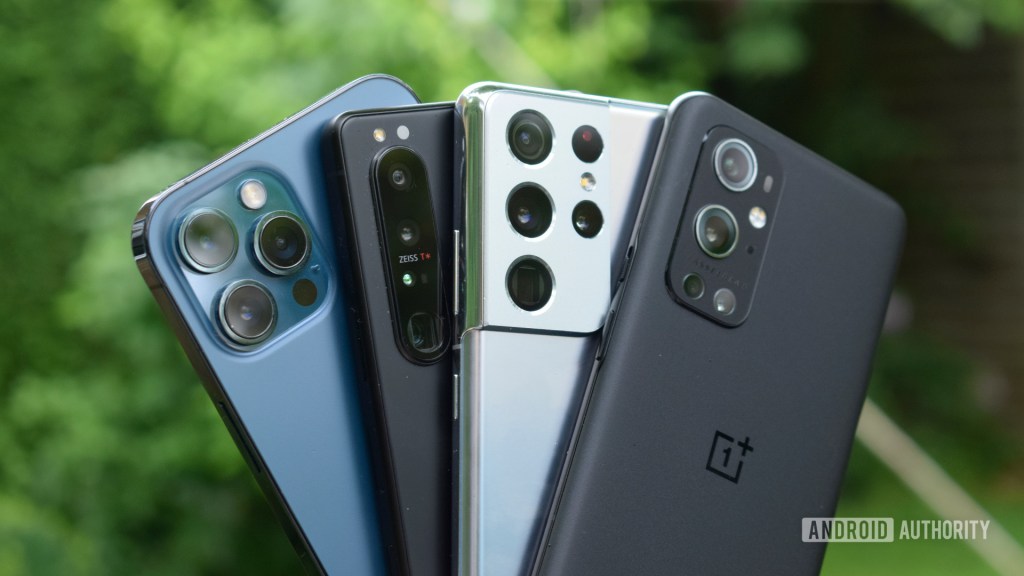
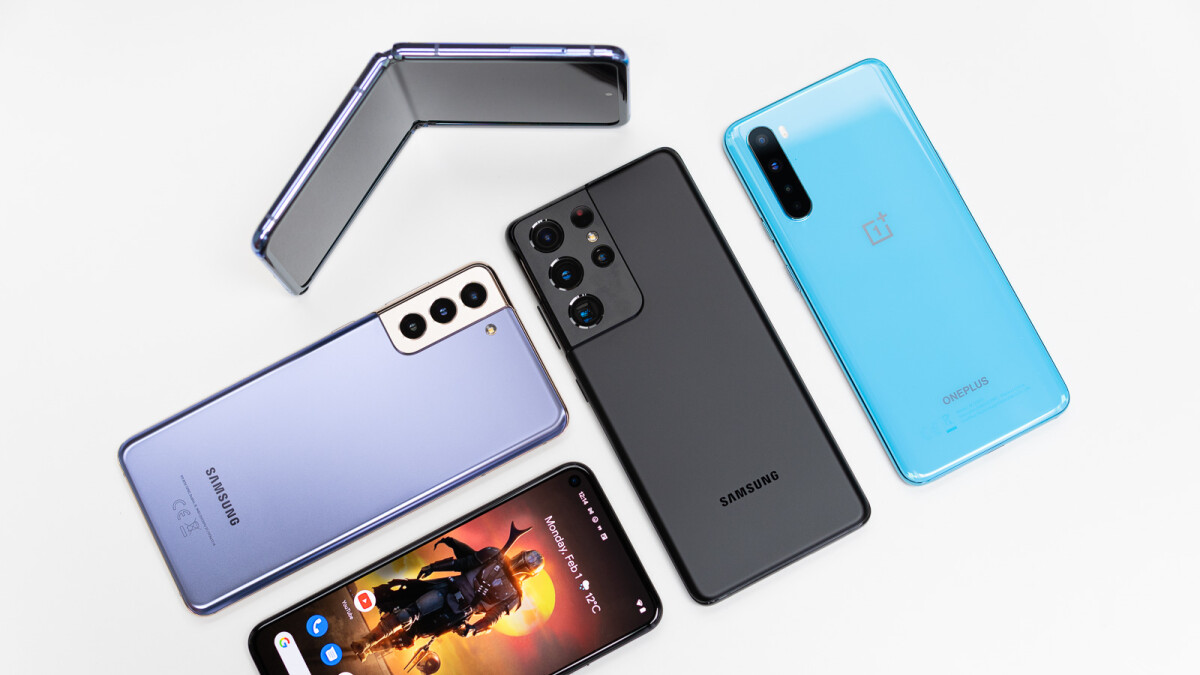
01)CHECK OUT YOUR PHONE::You’ve just lifted your new Android device from its packaging, and you’re beaming. Maybe your hands are shivering with anticipation. Your mouth is dry and your pupils are dilated. Okay, perhaps you’re not that excited, but a new phone is certainly a cause for celebration. What comes next, though? Here are some of the first things every Android owner should do with their phone when taking it out of the box. These little exercises will ensure that you get the most out of your device from day one.
First of all, take a moment to really appreciate what you’re holding in your hands. You are now the owner of a portable device so staggeringly futuristic that no science fiction writers saw it coming. Touch its screen in
Don’t let all this power go to your head. You need to keep your composure long enough to ensure your device came with all the correct parts.
Go through all of your phone’s packaging and take stock of everything. Review any warranty information, and take note of any extras. Most Android phones come with a SIM tool, so be sure not to throw that out if you ever want to install a new SIM card. You probably also got a charger and maybe even a cool set of earbuds.
02)CHARGE YOUR PHONE::Plug the phone in to get that battery charging. While many phones will come partially charged, they typically don’t come fully topped off. You’re going to be playing with your new toy for the next couple of hours, and you don’t want it dying on you right in the middle of a crucial process.
03)LOGIN TO GOOGLE::When you turn on your device for the first time, a walkthrough will guide you through the setup process. This will vary a tiny bit from phone to phone, but one of the first things it will ask you to do is log into your Google account.
You can skip this step if you want, but we seriously don’t recommend it. Logging into Google connects your device with many other services, and it’s the first step toward personalizing your phone. Activating this account will automatically set up your email, calendar, and contacts list, and it will prepare your phone to synchronize your identity across devices. It’s also required for the Play store.
If you’ve owned an Android device before, then you’re about to witness some magic. After logging into your Google account, your phone will connect with the Google Play Store and attempt to download all your old apps. Before your very eyes, this stock device will transform into a faster, sleeker version of your old phone.
For even more help, be sure to check out our guide to switching phones like a pro. New to Android? Here’s a guide on how to transfer your contacts and other information from iPhone to Android.
04) DOWNLOAD APPS::Visit the Play Store and check out alternatives to some of the apps you’re using. You can also try out a different launcher, download a few new games, or opt for a new music player. If you’re not a big fan of the keyboard installed on your device, grab a new one like Swiftkey, Chrooma, or Minuum. These pay attention to your typing habits and make texting a breeze.
It’s also important to remember you’ll still need to sign into Facebook, WhatsApp, Netflix, and whatever other services you have.
Once all the apps are installed, you can start customizing the device to your liking. You can set new wallpapers and ringtones and customize the home screen with app shortcuts and widgets. Don’t forget to organize the quick toggles in the notification panel, adjust the screen brightness, and enable gestures and other valuable features your device might offer.
05)ADD SECURITY::A PIN and a pattern lock are two security options available on most Android phones, although a lot of them also come with a fingerprint scanner.
You can also check if your device has Smart Lock capabilities. Smart Lock is a pretty cool feature that lets your phone bypass the lock screen in certain situations. For instance, you can set up your phone to remain unlocked if it’s in the vicinity of a particular Bluetooth device, like your car stereo. It may also be able to sense whether it has been set down or passed to a new user since the last time it was unlocked.
06) DOWNLOAD UPDATE::There is this possibility that your device might have a few updates waiting for you. Sometimes they will be minor fixes or speed improvements. Sometimes whole new versions of Android are waiting — especially if your new phone has been on the market for a little while. You can check for the latest software updates by going to Settings > System > System Updates, although the exact path may differ a bit from device to device.
07)TRACK YOUR DATA::you need to monito how much data you have used in a given billing cycle is a must. Going over the limit because of all videos you’re watching on YouTube can get expensive.
Setting up mobile data tracking is at ease. Head into your device’s settings, tap on “Wi-Fi and Internet” followed by “Data usage,” and then set the billing cycle and the amount of data your plan offers. Just keep in mind that the exact path may be a bit different depending on your device.
The next and final step is to enable a data warning and data limit. The former will notify you when you have used a predefined amount of data, while the latter will turn off cellular data once it reaches the limit you’ve set.
If you don’t find the data tracking feature on your Android device, fear not, my friend. There are plenty of dedicated apps available on the Play Store, like My Data Manager, which you download via the button below.
08)EXPLORE YOUR DEVICE::Take your time to investigate your phone’s settings. Sift through the menus and submenus, and make mental notes about where various features reside. This can save a lot of time later on, and you might even discover some new things about your device and features that where not on your old device.
Setting up an Android device might seem overwhelming, but it can be nice to settle in and enjoy the process.
- Why does your cell phones battery get drained so fastIn some cases we see our cell phone’s battery bite the dust when you never anticipate it. From the best to minimal brands of telephones there is consistently a period where the battery in the long run kicks the bucket. These are the justification for why your batteries get depleted so quick screen brightness:the brilliance… Read more: Why does your cell phones battery get drained so fast
 GADGETS KNOW HOW